


How to Diagnose an iPhone That Won't Charge
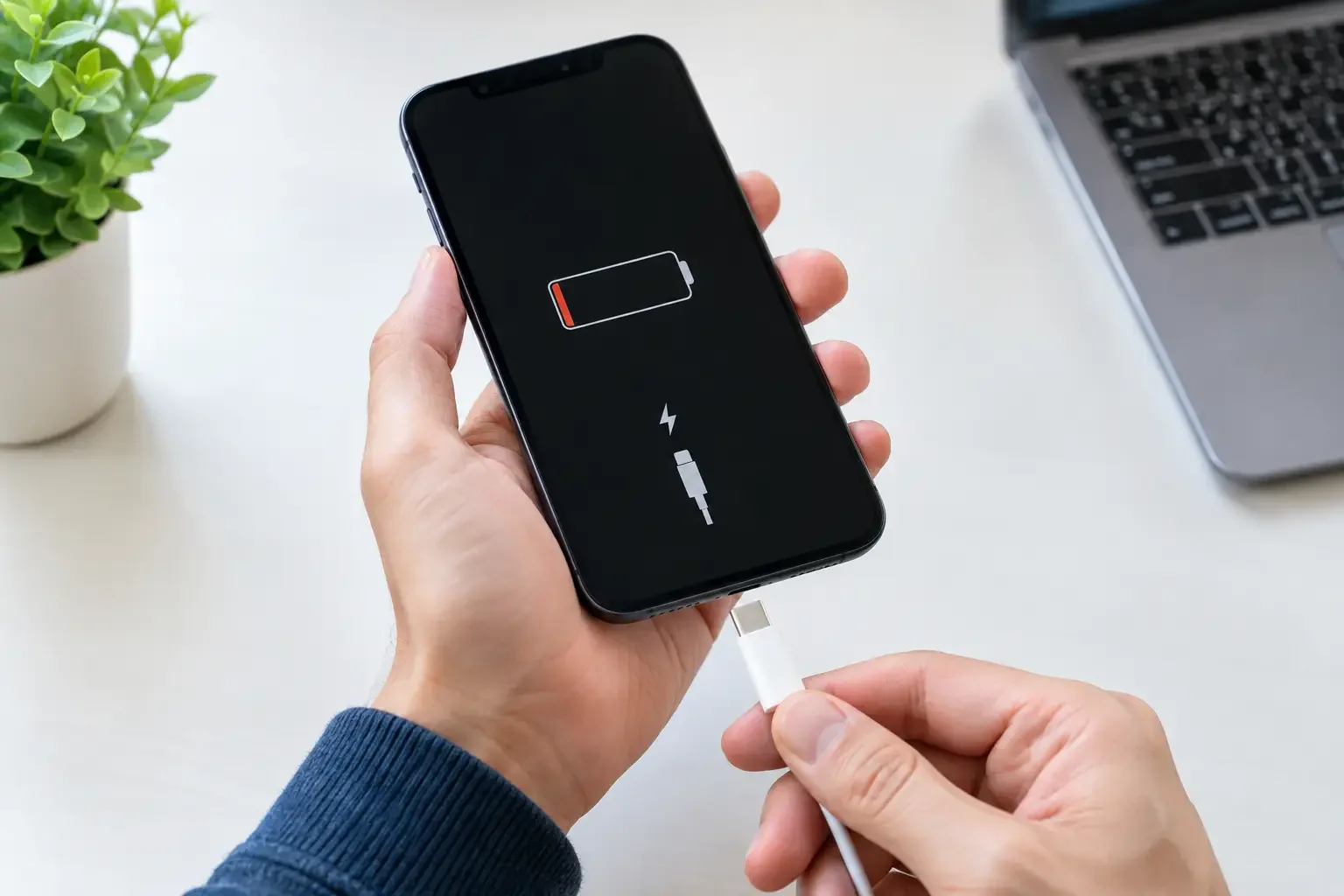
An iPhone connected to a power source that does not show the charging symbol does not automatically require a battery replacement. To diagnose an iPhone that won't charge correctly, one must isolate the cause, starting from the external elements and progressing to internal components. The charger, cable, connector, battery, charging flat, and power management circuit can all exhibit similar symptoms but require very different interventions.
For a workshop, an orderly diagnosis avoids unnecessary component replacements and reduces device downtime. For the experienced user, it allows them to understand when the problem can be resolved with a cleaning or a replacement and when it is necessary to entrust the logic board to a trained technician.
How to Diagnose an iPhone That Won't Charge: Preliminary Checks
The first check concerns the external power chain. Testing a second certified cable and a known working charger is essential: a damaged cable can intermittently supply power or fail to manage charge negotiation properly. The same is true for USB-C Power Delivery chargers, especially on the newer models.
Plugging the iPhone into a different wall socket and then into a computer's USB port helps distinguish charger failure from phone defects. If the device draws power from one source but not the other, the issue may stem from the available power profile and not necessarily from the connector.
It's also important to check the behavior with the screen off. A completely drained iPhone may take several minutes to display the Apple logo or battery icon. Leaving it on charge for at least 20-30 minutes with a reliable charger avoids premature diagnoses. If the Apple logo repeatedly appears, the phone shuts off, or stays stuck on the empty battery icon, one must assess the power draw, battery status, and integrity of the charging circuit.
Inspecting the Lightning or USB-C Port
In models up to the iPhone 14 series, the Lightning connector is one of the first points to check. From iPhone 15 onwards, attention should be directed to the USB-C port. In both cases, lint, compacted dust, oxidation, and damaged pins can impede electrical contact even if the cable appears to be inserted correctly.
A typical sign of a blocked port is when the connector does not fully enter or moves too easily. Before replacing the charging flat, inspect the port with a magnifying glass and proper lighting. Cleaning should be done with the device powered off, using non-metallic tools, and without forcing the contacts. The use of needles, paper clips, or metal tips can deform the pins and turn a blockage into permanent damage.
Green, white, or dark oxidation requires more in-depth analysis. Oxidation can affect not only the external connector but also the flat, internal contacts, and the logic board. In this case, replacing just the connector may not resolve the defect.
Symptoms Indicating Connector Issues
When the iPhone only charges while holding the cable at an angle, stops charging with minimal movement, or is intermittently recognized by the computer, the charging connector is a strong suspect. Another common case is slow charging with various cables and efficient chargers: dirt or partially damaged contacts can limit the available current.
Before ordering a replacement, accurately identify the model, variant, and generation of the device. Charging flats, bottom microphones, antennas, and connector assemblies can differ even among aesthetically similar models. Compatibility should be verified against the model code, not just the commercial name.
Battery: When It Really Is the Cause
A deteriorated battery can make the iPhone unstable during charging, causing it to shut down at seemingly high percentages or preventing it from starting after a deep discharge. However, a battery with reduced capacity is not automatically a battery that cannot charge. The diagnosis must consider voltage, draw, and device behavior.
From iOS settings, when accessible, it is useful to check Battery Status and charging. A message related to service or a low maximum capacity suggests wear but does not replace a hardware test. On a device that does not power on, a bench power supply or USB tester allows observation of whether there is draw and if it varies during the boot attempt.
No draw may be due to the port, cable, battery protection, battery connector, or charging circuit. Conversely, draw that rises and falls cyclically may indicate a battery unable to sustain startup, a short on a secondary line, or an anomaly on the board. This is where replacing batteries “on a whim” can become costly and unproductive.
In modern models, after replacement, notifications for unrecognized components or limited battery status information may appear, depending on the model and procedure followed. The technician must therefore assess not only the physical compatibility of the replacement but also the configuration and calibration aspects expected by the generation of iPhone.
Absent Wired Charging but Wireless Charging Works
If the iPhone charges via MagSafe or Qi pad but not through a cable, the battery and part of the charge management are likely operational. Focus should be on the Lightning or USB-C port, lower flat, data lines, and the circuit dedicated to wired connection.
The wireless test does not completely rule out a logic board defect but significantly narrows the field. If neither cable nor wireless charging works, the likelihood of an issue with the battery, battery connector, power circuit, or motherboard increases. Again, it is useful to compare the draw with a known working test battery.
Check Software, Temperature, and System Messages
Before opening the device, check for any iOS alerts. The message “Accessory may not be supported” can stem from a faulty cable, a contaminated connector, or data communication issues. A forced restart and system update can exclude software anomalies but should not delay hardware inspection when the problem is clearly mechanical.
Temperature is also a diagnostic factor. An iPhone that is too hot or too cold may temporarily suspend charging to protect the battery and components. If charging resumes at room temperature, it is incorrect to immediately attribute the defect to the connector. If the phone overheats abnormally upon connecting, testing should be halted, and possible shorts or liquid damage should be checked.
When to Intervene on Flats and Internal Components
Replacing the charging unit is justified after ruling out cables, chargers, obstructions, and the battery. During disassembly, disconnect the battery first and check seals, screws, brackets, and ground contacts. A misplaced screw, unseated connector, or missing shield can create further anomalies.
On some models, the lower unit integrates multiple functions: charging port, microphone, antenna, or additional contacts. After the intervention, charging, data transfer, bottom microphone, cell signal, and calls should all be tested. Replacing a flat without full functional verification means closing an incomplete repair.
For workshops and technicians serving multiple Apple generations, maintaining classified spare parts by model and appropriate testing equipment reduces operational errors. iPhoneHospital.it supports this need with components and tools dedicated to repair, but the choice of the part must always follow a diagnosis, not precede it.
When the Defect Is on the Logic Board
If the port, cable, battery, and flat are all functioning, the fault may involve charge management on the logic board. Falls, liquid infiltrations, incorrect voltages, and prior repairs can damage filters, data lines, USB controllers, or power circuits.
Cases of unrecognized devices from a computer, abnormal consumption, localized overheating, or charging that is present but stuck at a fixed percentage require bench analysis. This phase requires a schematic, board view, multimeter, stabilized power supply, and, when necessary, micro-soldering. Intervening without measurements can worsen the damage or compromise recoverable data.
An effective diagnostic procedure does not immediately seek the most likely replacement: it starts from the symptom, confirms each step, and replaces only the component that shows evidence of failure. This is the fastest way to restore a functioning iPhone and prevent a simple dirty port from becoming an unnecessary repair.