


iMac 27 Components Guide for Precise Repairs
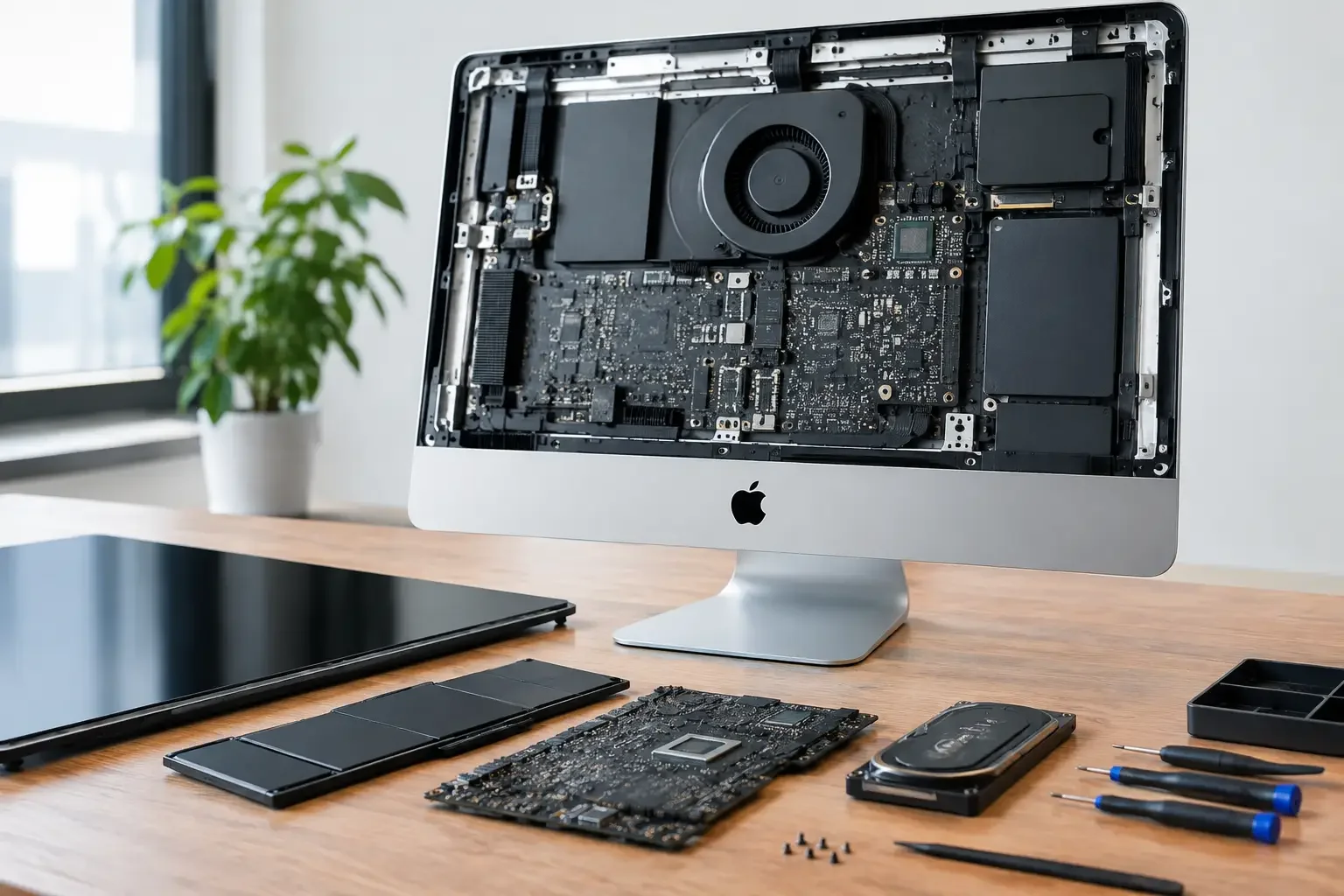
An iMac 27 can exhibit the same symptom across very different models, but the correct replacement part often varies by year, EMC code, resolution, and internal configuration. This iMac 27 components guide aims to prevent the most costly error in repair: ordering a seemingly identical part that isn't compatible with the machine being worked on.
The 27-inch format has been produced in numerous Intel generations, from the thicker-body iMacs of 2009 to the iMac Retina 5K of 2020. Therefore, there is no single display, power supply, or video cable for all iMac 27 models. Accurately identifying the device before proceeding is integral to the diagnosis.
Identify the Model Before Choosing iMac 27 Components
The first reference is the model number found on the stand or the back of the chassis. The most common models include A1311, which refers to iMac 27 from 2009 to 2011, and A1419, used for the thinner versions from 2012 to 2020. This data alone is not always sufficient: A1419 includes non-Retina panels, Retina 5K, and variants with significant changes to logic board, storage, and cabling.
Also, check the commercial year, EMC code, and serial number. If the computer boots, the "About This Mac" screen allows you to track the configuration; if it does not boot, you need to work with the physical codes and visually compare connectors. For a technician, it’s helpful to photograph display connectors, antenna cables, fan layouts, and the code printed on the original replacement before disassembly.
The main distinction is between iMac 27 models with a separate front glass and the slim iMacs with glued displays. In the former, the glass is magnetically held, and the LCD panel is secured with screws. In models from 2012 onwards, removing the screen requires cutting the perimeter adhesive and applying new dedicated adhesive strips during reassembly. Reusing generic double-sided tape can cause misalignments, dust infiltration, or display detachment over time.
iMac 27 Display: Panel, Glass, Cables, and Adhesives
The display is the component where compatibility should be checked most carefully. Pre-Retina iMac 27 models use different panels than the 5K models, both in resolution and electronics and cabling. A physically 27-inch panel is not automatically interchangeable with another panel of the same diagonal.
In the 2009-2011 models, it is possible to replace the front glass and LCD separately when the damage concerns only one of the two elements. In thinner models, however, the display group includes a more integrated structure: carefully evaluate if the defect arises from the panel, the display cable, backlight power, or logic board to avoid unresolvable replacements.
Vertical lines, halos, flickering, and absence of image can stem from different causes. A broken glass is an obvious aesthetic damage, while a missing backlight with a barely visible image may indicate a more upstream failure. Before ordering the display, perform an external monitor test when possible and check that the connector shows no oxidation, bent pins, or signs of overheating.
For reopening A1419 models, appropriate opening tools, custom adhesives, and clean procedures are required. Dust or fingerprints between the panel and chassis remain visible once the computer is closed, especially on Retina 5K surfaces.
Storage: HDD, SATA SSD, and PCIe SSD
Upgrading or replacing the storage unit is among the most requested interventions on iMac 27. However, configurations vary significantly by year. Older models typically use 3.5-inch SATA hard drives and, in some configurations, SATA SSDs. In later generations, a proprietary PCIe flash drive may also be present, often associated with a mechanical disk in a Fusion Drive configuration.
Replacing a hard disk with a SATA SSD greatly improves responsiveness, boot, and loading times, but the thermal sensor must be considered. Some Apple generations use proprietary wiring or disk temperature control. If the sensor is not managed correctly, the HDD fan may run at high speed. This is not a secondary detail: the component should be chosen along with the compatible thermal monitoring solution for that specific iMac.
PCIe SSDs require even more precision. Physical form, protocol, connector, and firmware compatibility do not necessarily align across generations. In more recent models with T2 chips, storage management and secure boot make the intervention less straightforward compared to a regular SATA upgrade. In these cases, it is advisable to verify the original configuration and recovery procedure before disassembling the computer.
RAM, Logic Board, and Processor
RAM is one of the few immediate interventions on many iMac 27 models. Different generations feature a dedicated access door on the back, under the power inlet, allowing access to the modules without removing the display. This does not mean that any DDR module will suffice: DDR generation, frequency, maximum capacity, and bank arrangement must comply with the model's specifications.
An iMac that emits beeping signals at startup or shows a black screen after an upgrade may have faulty modules, improperly inserted, or unsupported characteristics. The test should be performed by reinstalling one bank at a time, restoring the original memory, if available, as a reference.
The logic board and CPU require more cautious evaluation. Non-functioning USB ports, absence of video, power issues, or random shutdowns do not automatically indicate a faulty logic board. Before replacing it, check the power supply, power cables, power button, RAM, thermal sensors, and signs of liquid damage. The processor, where replaceable, must be compatible not only with the socket but also with the chipset, firmware, and thermal dissipation expected by the board.
Power Supply, Fans, and Thermal Sensors
The internal power supply of the iMac 27 operates with potentially hazardous voltages. Even when unplugged, some capacitors may retain charge. This intervention is intended for trained operators, following safety procedures and using appropriate tools.
A completely powered-off iMac may have a power supply failure, but it could also stem from the power cable, power button, or logic board. If the diagnostic LED is accessible, its status can help narrow down the problem. When replacing the power supply, check for form, mounting holes, nominal power, and connector type: significant differences exist between iMac 27 models from different years.
The fans should be considered functional components, not accessories. Continuous noise, vibrations, or high temperatures may depend on dust buildup, worn bearings, disconnected sensors, or improper management after a storage modification. During reassembly, always check the correct routing of cables: a cable pinched by a fan can cause immediate or progressive failure.
Technical Checklist Before Ordering
Before selecting a replacement part for iMac 27, gather at least four pieces of data: model and EMC code, exact year, original part code, and a clear photo of the connectors. For displays and power supplies, always include a visual check of the screw and cabling arrangements; for storage and RAM, note the installed configuration and any presence of Fusion Drive.
It is also advisable to distinguish the component showing the defect from the one causing it. A black display does not always mean a faulty display, a fan running at maximum does not always indicate a defective fan, and a slow boot does not automatically require a logic board replacement. A well-organized diagnosis reduces downtime, returns, and management costs.
For iMac parts, consumables, and tools for Apple repairs, iPhoneHospital.it organizes searches by family and model, a useful criterion when you need to quickly locate the exact component. The operational goal remains one: work on the correct code, verify every compatibility before purchasing, and close the iMac with the same care dedicated to diagnosis.
Replacement parts and useful tools: iPhone parts