


iMac Power Issues: Diagnosis and Repair
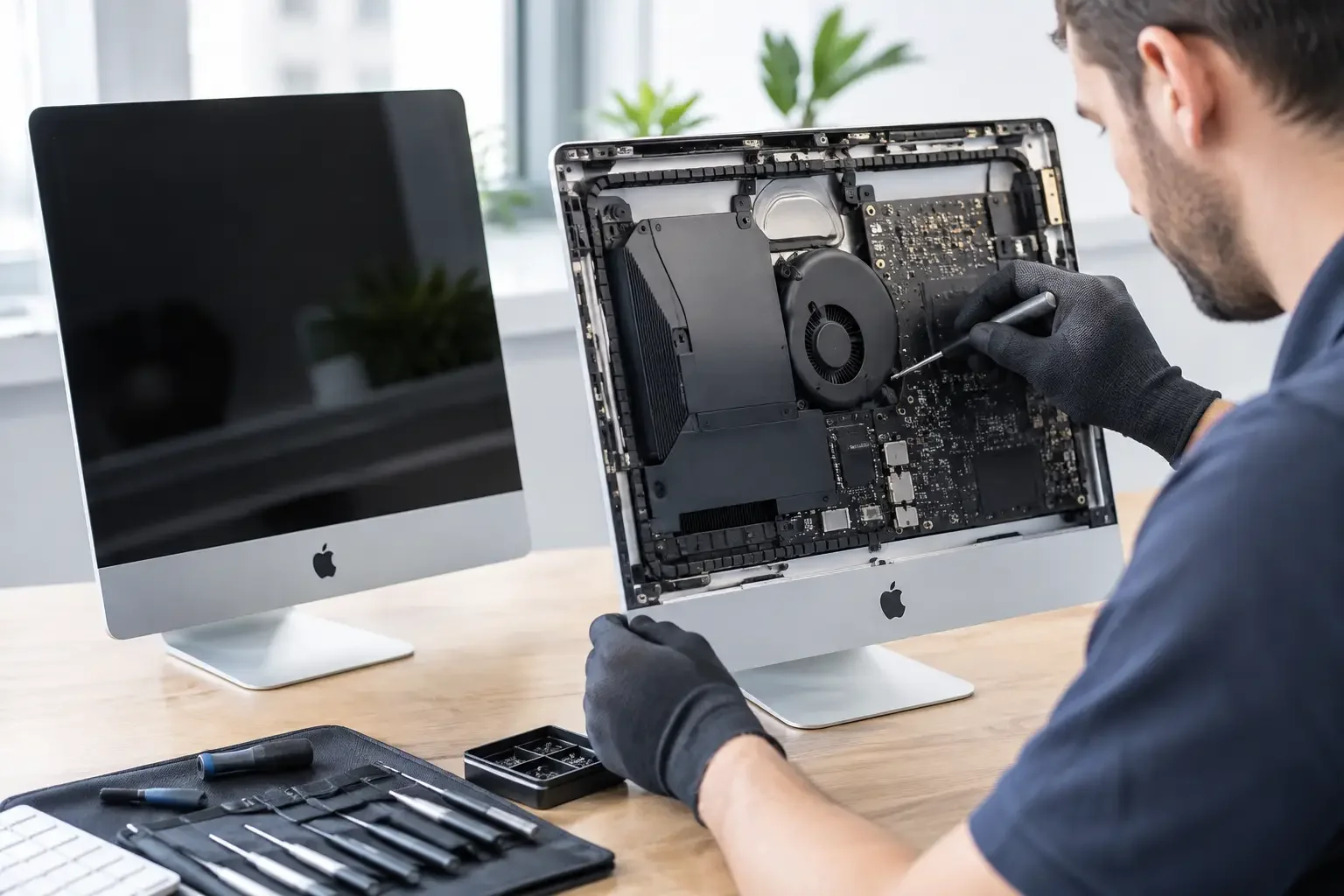
An iMac that won't turn on doesn't automatically mean a faulty logic board. In cases of iMac power issues, the difference between no signs of life, active LEDs or fans without an image, and interrupted startup drastically changes the diagnosis, the replacement part to order, and the time required to bring the machine back into service.
For a workshop, avoiding trial-and-error replacements is essential. The verification must start from observable symptoms, continue with low-risk external tests, and proceed to disassembly only when there are concrete elements to isolate the power supply, power button, display, storage, or motherboard.
iMac Power Issues: Identifying the Correct Symptom
The phrase "doesn't turn on" is often used for very different conditions. Before opening the device, it is necessary to define exactly what happens after pressing the power button.
If the iMac remains completely inert, with no fans, sounds, backlighting, or visible LEDs, the initial check concerns the power chain. Possible causes include the power outlet, power cord, internal power supply, connectors, power button, and power circuit on the logic board.
If fans, startup sounds, or USB peripheral activity are present but the screen remains black, the iMac might be booting correctly. In this case, a malfunction of the LCD panel, backlighting, display cable, GPU, or operating system should be distinguished from an actual boot failure.
A third scenario is partial booting: the Apple logo appears, the loading bar freezes, the Mac repeatedly restarts, or shows a question mark. Here, primary power is usually present; focus shifts to the SSD, hard disk, Fusion Drive, RAM, macOS installation, or logic board.
External Checks Before Disassembly
The first step is to rule out trivial but frequent causes. Try a known working power outlet, remove non-essential power strips and UPSs, check the integrity of the power cord, and disconnect all USB, Thunderbolt, and Ethernet peripherals. A faulty hub or shorted external device can prevent booting or alter the machine's behavior.
Press and hold the power button for about ten seconds, then release it and try again after a few seconds. This operation may clear a residual abnormal condition but does not resolve an actual hardware failure. If the iMac restarts, it's still wise to monitor the issue: an occasional restart does not rule out an unstable power supply or a failing storage unit.
When the Mac seems to turn on but displays nothing, carefully check the backlighting. In low-light conditions, a faint image visible on the panel may indicate that the system is booting, and the fault lies with the backlight, display circuit, or cable. On some models, an external monitor can also help separate an internal video problem from a general boot failure.
iMac Power Supply: When It Is the Prime Suspect
The internal power supply is one of the most common causes in models showing no signs of life. Wear of electronic components, voltage spikes, overheating, and degraded capacitors can lead to total failure or intermittent behavior: the computer starts only after several attempts, shuts down under load, or restarts for no apparent reason.
Compatibility is the critical point. Two physically similar power supplies are not necessarily interchangeable: wattage, form, fittings, connector layout, and component code vary based on screen size, year, and configuration of the iMac. Before purchasing, identify the exact model via the model or serial number and verify the compatibility of the replacement part.
Measuring voltages requires correct procedures and suitable equipment. A power supply can maintain power even after being unplugged. Therefore, testing exposed circuits and making internal replacements should be entrusted to qualified technicians, using isolated tools and appropriate ESD precautions.
Power Button, Cables, and Connectors
A faulty power button is less common than the power supply but should be considered, especially when the iMac does not respond to the button and the standby line is present. In all-in-one models, the connection between the button, logic board, and other modules can be subject to oxidation, cable pulling, or incorrectly seated connectors after previous repairs.
During inspection, ensure the power connector is securely in place and that there are no signs of burning, warped plastic, corrosion, or liquid. The presence of debris near the connectors changes the assessment: simply replacing the seemingly faulty component may not suffice if there is damage to the logic board.
In models with glued displays, opening requires specific tools for cutting the adhesive and new custom double-sided tape for reassembly. Forcing the panel with improper tools increases the risk of damaging the LCD, glass, flat cable, and casing. Having appropriate laboratory equipment for repeated interventions reduces time and rework.
iMac On but with a Black Screen: Don't Confuse Display with Boot
Fans running and a black screen do not necessarily mean that the motherboard is compromised. It needs to be verified whether the iMac produces the startup sound, whether it responds to the keyboard, whether it is detected on the network, or whether it shows activity on external drives. These signals help determine if macOS has completed loading.
The fault can lie in the LCD panel, backlighting, eDP/LVDS cable depending on the generation, GPU, or integrated graphics section. A faulty display may also exhibit lines, flickering, absent brightness, or intermittent image before total failure. Collecting the history of the fault is as useful as the electrical test.
In 5K models, display management is more complex, and quick diagnosis based only on the fans running can lead to an incorrect order. Checking the panel code and the iMac is essential before selecting a replacement part.
When the Problem Is SSD, RAM, or macOS
If the iMac turns on but doesn't complete loading, shows a folder with a question mark, or takes an unusual time to boot, check the storage. Worn mechanical hard drives, SSDs with errors, degraded Fusion Drives, and damaged SATA connectors can block booting without preventing electrical power.
Booting in recovery mode, when available, allows checking for the presence of the disk and the need to reinstall macOS. If the drive is not detected, check the connection first and then the storage medium. In systems with traditional hard drives, replacing with an SSD can resolve the failure and significantly improve performance, provided that a compatible installation kit for that model is used.
RAM should be considered, especially in the presence of diagnostic beeps, random restarts, kernel panics, or unusual screens. If the model allows easy access to the modules, testing one stick at a time helps isolate the faulty component. In models with soldered memory, however, the issue requires a more in-depth board diagnosis.
When to Stop and Move to Board Diagnosis
If the power supply, wiring, button, and storage are correct but the iMac doesn’t boot, the fault may lie with the logic board. Shorts on main lines, defective power sections, liquid damage, faulty GPUs, or corrupted firmware require instrumentation and skills for microsoldering.
In this situation, purchasing replacement parts blindly is not advisable. The most efficient procedure is to document the symptoms, perform targeted checks on voltages and amperages, and decide whether board-level repair is economically feasible compared to board replacement. The machine's age, configuration, display condition, and the value of the data present influence the choice.
For those managing recurring repairs, organizing replacement parts by iMac model and keeping consumables, display adhesives, ESD tools, and frequently used components available helps reduce technical downtime. iPhoneHospital.it is precisely oriented toward this need: to find the compatible component without wasting time on generic categories.
The operational rule remains simple: first, identify the actual behavior of the iMac, then test the involved section, and only after select the replacement part. An ordered diagnosis protects the workshop's margin and provides the customer with a justified repair, not just an attempt.
Replacement parts and useful tools: iPhone Parts