


How to Test a Faulty MacBook Battery
A MacBook that drops from 35% to shutdown, freezes at 1%, or loses charge in just a few minutes doesn't necessarily have a battery that needs replacement. Before ordering a new part, understanding how to test a faulty MacBook battery prevents diagnoses based on a single symptom and reduces the risk of working on the wrong component.
The correct check combines macOS data, hardware diagnostics, and, when the device is opened in the lab, targeted electrical checks. Battery status, cycle count, and remaining capacity are useful indicators, but they must be read alongside the actual charging and discharging behavior.
Recognizing the Symptoms of a Truly Faulty Battery
Normal wear and tear is expected: over time, maximum capacity declines, and autonomy gradually decreases. A defect, however, tends to produce repeatable or sudden anomalies. The most common cases are shutdowns at residual percentages, charging interruptions without reason, unstable battery levels, and localized overheating around the cells.
Another sign not to ignore is the lifting of the trackpad, keyboard, or bottom case. A swollen battery should not be tested by continuing to charge or discharge it: the MacBook must be turned off, disconnected from the power supply, and taken to an appropriate bench for replacement. Forcing the case or pressing on the cells can damage the trackpad, flat cables, and top case.
The faulty battery must be distinguished from a power supply failure. If the MacBook does not detect the power adapter, if the charging icon appears and disappears, or if the USB-C connector heats up abnormally, the issue may concern the charger, cable, charging port, I/O board, or management circuit on the logic board. Additionally, on many recent models, the power of the adapter directly influences the speed and stability of the charge.
How to Test the MacBook Battery from macOS
The first step does not require disassembly. From the Apple menu, open System Settings, then Battery and Battery Status. In earlier versions of macOS, this information is available in System Preferences or by holding down Option and selecting the battery icon in the menu bar.
The most significant entry is the condition reported by the system. If it says “Normal,” macOS does not detect degradation beyond the expected threshold. “Service Recommended,” on the other hand, indicates that the capacity is reduced or that the battery is not operating within expected parameters. This does not always mean immediate failure, but it requires a more precise check, especially on devices used for work.
To read technical values, open System Information and follow the Power path. In the Battery Information section, you typically find cycle count, full charge capacity, voltage, amperage, and charge status. Noting these data with a charged battery and then repeating the reading during a controlled discharge can help identify anomalous fluctuations.
Charge Cycles: Useful, but Not Decisive
The cycle count measures the accumulated use of the battery. A cycle does not necessarily equate to a single recharge: two 50% discharges combined equal one complete cycle. Apple sets a design cycle limit for each generation of MacBook, which varies by model.
A battery with many cycles and reduced capacity is a natural candidate for replacement. However, a low cycle count does not exclude a defect. Cells degraded by heat, long periods of disuse, deep discharge storage, or unstable power can perform poorly even before reaching the expected limit.
The most interesting value is the ratio between full charge capacity and design capacity. A capacity close to or above 80% may still be adequate, but it depends on the type of use and the age of the battery pack. If the capacity appears good but the MacBook shuts down at 20-30%, it's essential to check calibration, internal sensors, and voltage behavior under load.
Performing Apple Diagnostics
Apple Diagnostics helps separate a recognized firmware defect from a more complex issue. For Macs with Intel processors, turn off the computer, turn it back on, and hold down the D key. For Macs with Apple Silicon chip, hold the power button until the boot options appear, then use the Command-D combination.
The test can return codes related to the battery, power, or thermal management. A code does not replace technical inspection, but it is a record to note in the work order. If Diagnostics does not report errors and the defect remains evident, do not dismiss the case: some issues of actual capacity, internal resistance, or connector may not be identified by the automatic test.
Practical Test of Autonomy and Discharge
A useful test involves charging the MacBook to 100%, allowing it to stabilize while connected for a few minutes, and then disconnecting it. Set brightness, volume, wireless connections, and work load to constant levels. For a comparable check, use local video playback or a normal browsing session with the same applications open.
Observe the percentage drop for at least 30-60 minutes. A progressive reduction is expected; sudden jumps of more than a percentage point, prolonged stalls followed by rapid drops, or shutdowns above 1% indicate unreliable charge management. Repeat the test a second time, as background processes, system updates, and ambient temperature can skew a single reading.
Do not perform repeated deep discharges with the idea of “regenerating” the cells. Lithium-ion batteries do not repair themselves with full charge and discharge cycles. A controlled discharge may assist in diagnosis or rechecking the percentage estimate, but stressing a degraded pack accelerates its wear.
Bench Testing the MacBook Battery
When macOS and Diagnostics are not enough, the check goes to the lab. Before opening the device, accurately identify the model by the A number, year, and configuration. MacBook batteries are not interchangeable just because they have similar connectors: they vary in shape, rated voltage, mounting, BMS circuit, and compatibility with the top case.
After opening, first disconnect the battery from the logic board following the specific model procedure. Visually inspect cells, adhesives, cables, and connectors: corrosion, liquid traces, kinks in flat cables, and debris under the cells completely change the diagnosis.
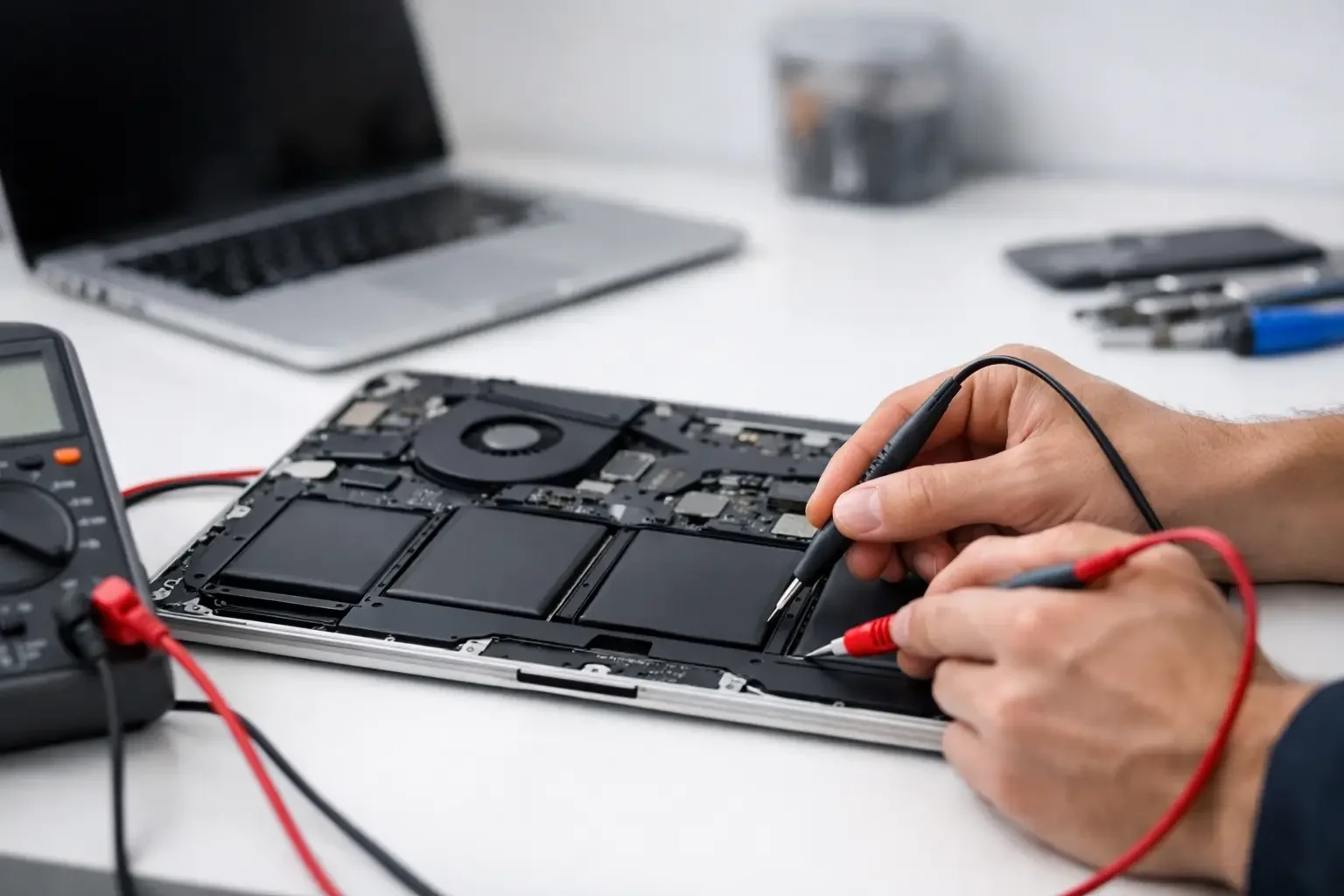
With a properly set multimeter, you can check the voltage of the pack at the battery connector, referring to the pinout and rated values of the model. An absent or clearly out-of-range voltage is a strong indication, but it does not authorize you to power or bridge communication pins. Smart MacBook batteries integrate protective electronics and data lines: an incorrect measurement can damage the circuit or put the technician in unsafe conditions.
For professionals, a bench power supply with absorption reading is also useful to exclude a logic board issue. The behavior at startup with the battery disconnected, using the original power adapter or a certified power supply, can indicate whether the anomaly stems from the battery pack or the power section. This test does, however, require experience with the specific model, especially with USB-C and Apple Silicon MacBooks.
When to Replace the Battery and When to Look Elsewhere
Replacement is warranted when there is swelling, service warnings associated with low capacity, repeated shutdowns at residual percentages, or anomalies confirmed by discharge tests and bench measurements. In these cases, it’s essential to select a replacement for the exact model, not just for the MacBook Air or MacBook Pro family.
If the capacity is consistent, the voltage is regular, and the defect only appears during charging, it's worth checking the power adapter, cable, USB-C port, or MagSafe, DC-in board, and logic board. High temperatures can also temporarily reduce available power and give the impression of a battery failure.
For labs and technicians needing to source the correct component, selecting by model code and generation in the MacBook Parts category at iPhoneHospital.it reduces compatibility errors and downtime. Before ordering, always compare the battery code, connector layout, and specifications of the opened device.
A reliable diagnosis does not stem from a single percentage read on the screen. Combining macOS state, behavior under load, diagnostics, and physical checks allows you to replace the battery only when really necessary and identify faults that lie elsewhere more quickly.