


MacBook Trackpad Not Working? What to Check
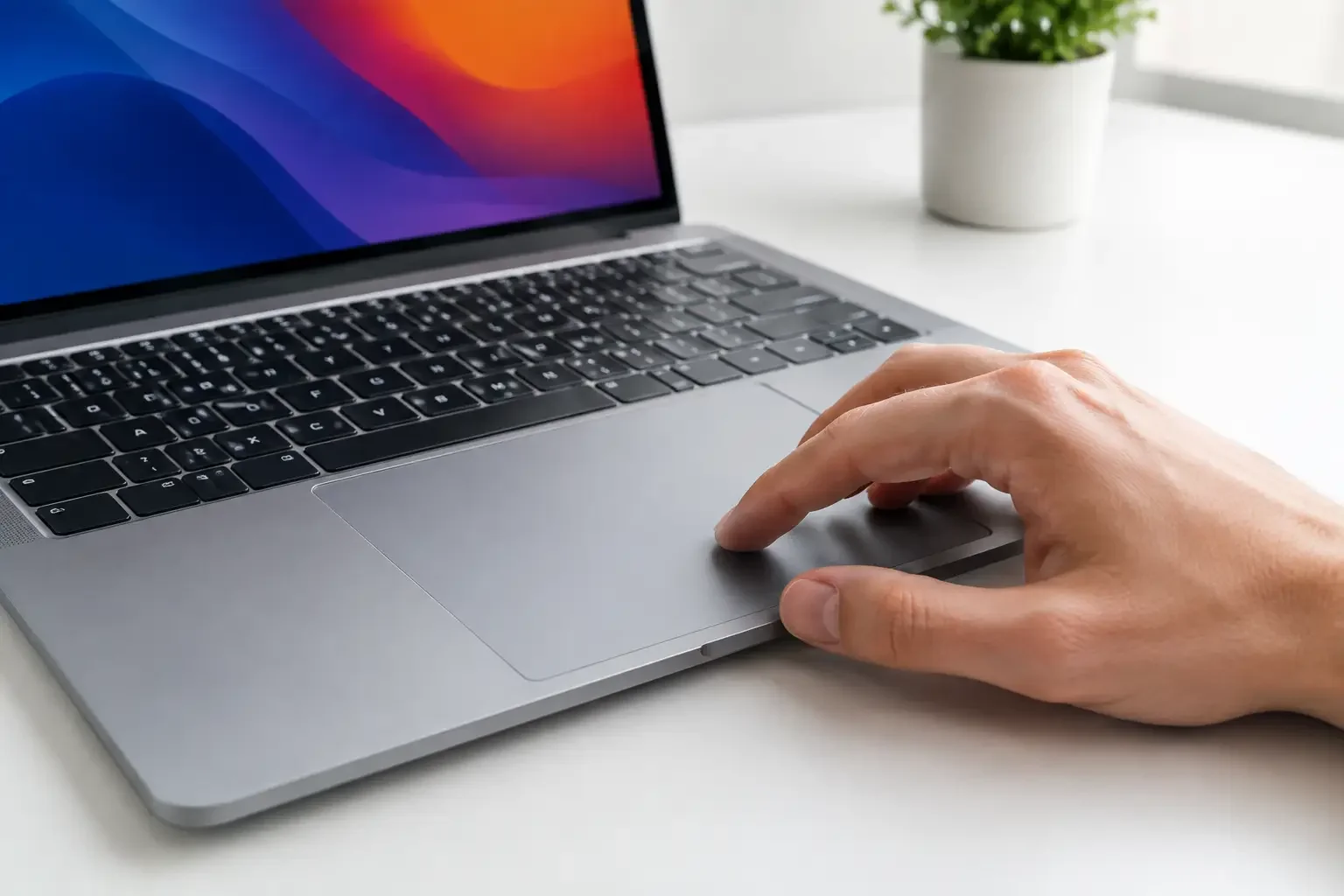
A MacBook that boots but doesn’t respond to pointer commands causes immediate operational downtime. When the MacBook trackpad isn’t working, the issue can stem from a simple macOS setting, a temporary system freeze, or a localized hardware fault: trackpad, flat cable, connector, swollen battery, or logic board. Proper diagnosis avoids unnecessary replacements and reduces repair time.
Before opening the computer, it’s important to differentiate between a completely inactive trackpad and one that moves the cursor but doesn’t register clicks, multitouch gestures, or certain areas of the surface. These are different symptoms requiring different checks.
MacBook Trackpad Not Working: Initial Checks Without Opening
Connecting a USB or Bluetooth mouse allows you to control the Mac and determine if the malfunction is restricted to the trackpad. If the external mouse works normally, macOS is likely operational, and you can focus on settings, peripherals, and internal trackpad components.
Start by disconnecting all wired peripherals, including USB-C hubs, adapters, external drives, and non-original or damaged power supplies. A faulty accessory can cause interference, unusual pointer behavior, or power issues. Then restart the MacBook; it’s a simple test but resolves temporary blocks in the processes handling input and gestures.
Check macOS settings to ensure the trackpad isn't configured improperly. Specifically, verify the options related to clicks, touch to click, scrolling, and gestures. If the pointer works but physical clicks aren’t detected, try temporarily enabling touch to click. This allows you to continue using the computer and provides an initial clue: the capacitive sensor may be functioning, while the click mechanism or pressure detection could be compromised.
It’s also worth booting in safe mode. If the trackpad starts working in this condition, the cause could be an extension, third-party software, or a startup item. If it remains inactive there, the hardware hypothesis becomes more plausible.
Interpreting the Symptom Before Repair
A trackpad that doesn’t move the cursor and doesn’t register any gestures may have a disconnected, damaged, or oxidized flat cable. In MacBooks where the trackpad communicates via a dedicated flat cable, significant bends, damage near the connector, or liquid residues are common causes. Before ordering a replacement, identify the exact year, size, and model code of the MacBook: visually similar components may have different connectors, flat cable lengths, and revisions.
If the cursor moves but clicks don’t work, the diagnosis depends on the model's architecture. In older MacBooks with mechanical clicks, the issue may lie within the trackpad group, the support, or deformation caused by the battery. In Force Touch models, clicks aren’t traditionally mechanical: the sensation of pressure is simulated by haptic feedback. If the MacBook is off, the apparent click might not be perceptible; if the system is on and the trackpad doesn’t respond, check power, connections, and module functionality.
Intermittent behavior - a jumping cursor, random clicks, irregular gestures - requires particular attention to dirt, moisture, and contamination. Cleaning the surface with a lightly damp, well-wrung soft cloth may be useful, without allowing liquids to enter along the edges. If the defect began after a fall or contact with liquids, external cleaning isn’t a fix: internal inspection of the flat, connectors, and board is required.
Warning Sign Not to Ignore: Swollen Battery
A hard-to-press trackpad, raised at the edges, or suddenly unresponsive may indicate a swollen battery. The battery, increasing in volume, exerts pressure from below on the trackpad and can deform the top case, alter the click, or damage adjacent components.
In this case, do not force pressure on the trackpad or continue using the MacBook while plugged in without evaluation. Turn off the device, disconnect power, and proceed with a safe internal inspection. Replacing the battery may restore the proper working space of the trackpad, but the outcome depends on how long the pressure has been present and any permanent deformations.
Reset and Diagnostic Tests: When They're Truly Needed
On MacBooks with Intel processors, resetting the NVRAM and SMC can resolve anomalies related to power management, internal peripherals, and system parameters. It’s not a universal solution for a broken trackpad, but it’s a reasonable step when the issue appears without bumps, liquids, or signals of physical damage.
On Apple Silicon models, many functions previously associated with the SMC are handled differently by the system. A complete shutdown, a few seconds of waiting, and a new power-up are often the most appropriate initial control. It’s essential not to apply procedures meant for Intel to every MacBook; first, identify the hardware platform.
Apple Diagnostics can help detect some defects in internal components, but an error-free result does not exclude a problem with the flat, connector, or trackpad. The test should be viewed as one part of the diagnosis, not a definitive confirmation. In labs, visual inspection and testing with a known working replacement often remain more conclusive.
When to Open the MacBook and What to Check
If software tests don’t change the behavior, it’s time to proceed with hardware diagnostics. Opening should be done with appropriate equipment, ESD protection, and organized screws by position. The screws on the bottom may have different lengths: reinstalling an incorrect one can damage the top case or other internal elements.
After removing the bottom panel, the first step is to disconnect the battery. Only then is it appropriate to check the trackpad connector and its flat cable. Ensure that the flat cable is correctly inserted, that the retaining tab is intact, and that there are no oxidations, tears, deep bends, or signs of overheating.
A useful check also pertains to the area of the top case and battery. Look for signs of pressure, deformed batteries, missing screws, improperly positioned shields, or traces of liquid. If oxidation is present, replacing only the trackpad without cleaning and verifying the rest of the line may lead to a temporary or ineffective repair.
Trackpad, Flat, or Top Case: What Replacement Is Needed?
The choice depends on the MacBook's construction and the outcomes of the tests. If the flat is damaged and the trackpad responds with a test cable, replacing just the cable is the most targeted intervention. If the flat is intact but the trackpad is unrecognized or exhibits repeatable defects, replacing the compatible module is indicated.
In some models, the trackpad is bonded to the top case or requires more extensive disassembly, involving the removal of the battery, speakers, and other elements. Here the trade-off is clear: replacing only the component reduces the cost of the replacement but increases the time and complexity of the intervention; a more complete assembly may simplify reassembly, provided that compatibility is thoroughly verified.
To purchase MacBook replacements, the reference should always be the exact model indicated on the bottom of the computer or derived from system information. The display size and commercial year are not enough. A 13-inch MacBook Pro can use different trackpads, flats, and batteries between very close revisions. iPhoneHospital.it organizes components by families and models, a useful criterion to reduce selection errors during ordering.
Common Errors That Extend Downtime
The first mistake is replacing the trackpad without checking the battery. If a swollen battery remains installed, the new component may continue to operate under pressure. The second is reusing a flat with signs of wear because it still appears intact: microfractures and internal damage aren’t always visible to the naked eye.
The third involves compatibility. Installing a replacement from a different revision can give partial symptoms, like an active cursor but absent gestures, or no response at all. Finally, not disconnecting the battery before intervening on connectors increases the risk of accidental short circuits and damage to the logic board.
An inactive trackpad doesn’t always require a replacement, but it always requires an organized diagnosis. Proceeding from software checks to the inspection of the battery, flat, and connectors helps identify the truly responsible component and get the MacBook back to work without unnecessary replacements.
Useful Replacements and Tools: iPhone Replacements · Batteries