


Swollen Battery: Risks, Causes, and Replacement
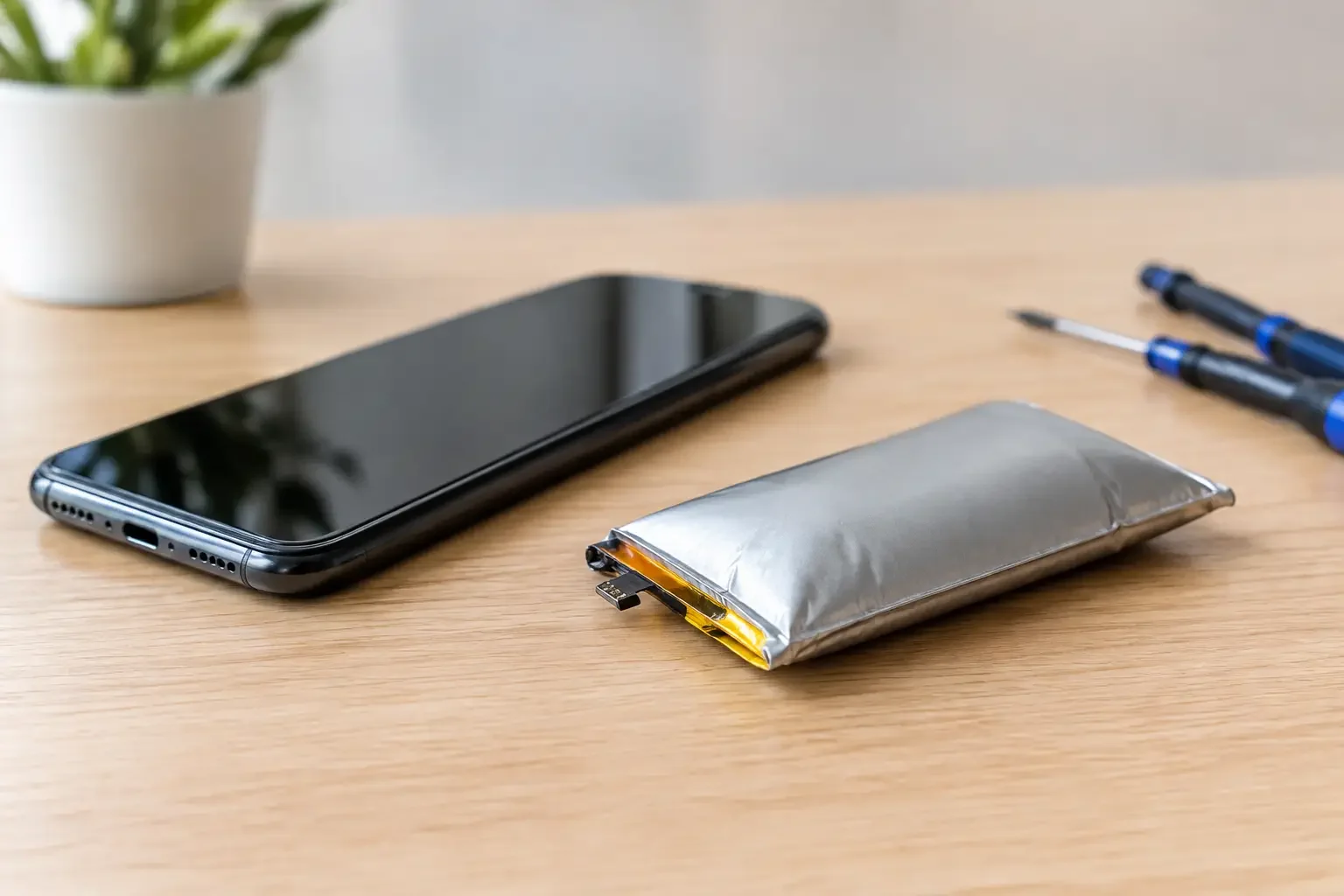
A display that lifts from the frame, a case that no longer closes properly, or a rigid trackpad are often the first signs of a swollen battery. It’s not just an aesthetic defect or a problem to be postponed: the volume increase of a lithium-ion cell can apply pressure to the display, flat, cover, keyboard, and logic board, turning a routine replacement into a more complex repair.
For a workshop, recognizing the problem during acceptance allows for immediate prioritization, compatible replacement parts, and possible collateral damage. For the knowledgeable user, it means avoiding maneuvers that could puncture the battery casing or compromise recoverable components.
Swollen Battery: What Happens Inside the Cell
A lithium-ion battery is composed of sealed cells that operate within precise ranges of voltage, temperature, and current. When internal chemical processes degrade the electrolyte and electrodes, gas can develop. Since the casing is not designed to expand, the cell thickens and pushes against surrounding parts.
Swelling does not necessarily indicate a battery on the verge of catching fire, but it always signifies an out-of-spec battery that should not remain in service. Mechanical pressure and chemical instability increase the risk of damage during use, charging, and especially during device disassembly.
On iPhones, the most common symptom is a slightly raised display along one side, often at the top or center. On iPads, the deformation may be less noticeable, as the display is large and glued to the frame. In MacBooks, a swollen battery can lift the bottom case, cause instability in how the computer rests, or alter the trackpad's travel.
Main Causes of Swelling
The age of the battery is a recurring cause, but it’s not the only one. Even a relatively new battery can swell if subjected to improper thermal or electrical conditions. Therefore, diagnosis goes beyond just counting charge cycles.
The most common causes are four:
- natural degradation of the cells after numerous charge and discharge cycles;
- prolonged exposure to heat, such as in a car, near thermal sources, or during intense workloads;
- recharging with malfunctioning chargers, cables, or management circuits;
- damage from drops, liquid infiltration, bending, or previous interventions not properly performed.
In Apple devices, it’s also useful to check the behavior of the charging system. A damaged charging connector, power circuit anomalies, or irregular absorption on the logic board can shorten the life of the replacement battery. Simply replacing the cell without identifying an external cause can lead to the return of the defect.
The quality of the replacement part must also be considered. A compatible battery must be selected for the exact model, capacity, connector, physical profile, and, if applicable, management electronics. Using a similar but non-specific battery can cause mounting issues, inaccurate percentage readings, reduced autonomy, or safety problems.
How to Recognize a Swollen Battery Without Opening the Device
Swelling should be distinguished from a simple detachment of the display adhesive. If the display of an iPhone has lifted after a fall, without other symptoms and with a localized crack, the cause may be mechanical. If, however, the lifting increases over time, the casing appears under tension, or the display shows abnormal curvature, the battery is a concrete possibility.
On MacBooks, check the alignment of the bottom case, stability on the table, and the trackpad’s response. A click that has become hard, intermittent, or impossible should not be dismissed as a trackpad failure: often, the battery is pushing from below and altering the geometry of the top case assembly.
Other useful signals are unusual heat during charging, reduced autonomy, sudden shutdowns, unstable charge percentage, and a pungent chemical odor. None of these elements alone confirms the defect, but their presence along with physical deformations requires halting use.
Do not press the display to close it, do not tighten screws to force the case, and do not apply clamps. Compressing a swollen cell can further damage the casing and transfer pressure to the OLED or LCD panel, flex cables, and connectors.
What to Do Immediately and What to Avoid
If the device is on and still usable, the priority is to limit thermal and electrical stress. Turn it off when possible, disconnect it from charging, and keep it away from combustible materials are prudent measures. Do not leave the device in the sun, in a car, or plugged in overnight.
The battery should not be punctured, bent, crushed, or cut. Do not use deep blades near the cell area and do not insert metallic tools under a glued battery. In models with stretch-release adhesives, removal should occur by pulling the tabs at a low angle and consistent tension. If the tabs break, a controlled procedure is necessary, not brute force.
For technicians, proper management begins at the workbench. Disconnect the battery first, isolate the connector, use non-metallic tools near the cell, and prepare a suitable container for damaged batteries to reduce operational risk. Isopropyl alcohol and moderate heat can help soften some adhesives but should only be used where compatible with the model and without saturating areas near displays, speakers, or circuits.
A visibly deformed battery must not be shipped as a normal return nor thrown in regular household waste. It should be disposed of through dedicated channels for WEEE and expired batteries, following local procedures and those of the collection center. For a workshop, separating and identifying damaged cells prevents mistakes in waste material management.
Replacement: Checks Before Installing New Component
Battery replacement is often definitive, but it should be approached as a comprehensive intervention. Before installing the new component, it's advisable to carefully inspect the display, frame, battery connector, charging flex, and areas subjected to pressure. On an iPhone with a raised display, for example, checks should include perimeter seals, display flex, and panel integrity. If the battery has been swollen for a long time, the frame may have lost its flatness.
On MacBooks, evaluate the top case, trackpad, trackpad cable, and the screws on the bottom. A deformed cover does not always fit perfectly back in place after replacement. It’s preferable to verify the result of reassembly before returning the device, checking closure, stability, trackpad clicking, and absence of pressure points.
After installation, controlled charging and temperature monitoring are more useful than performing complete cycles without reason. Modern batteries do not require aggressive calibration procedures. Instead, it is essential to verify that the device charges regularly, that the percentage is consistent, and that no abnormal overheating occurs.
On some recent models, replacement may generate battery-related messages or require specific configurations set by the manufacturer. The technician should inform the customer before the intervention and choose a replacement suited to the exact model, not just to the device family.
Replacement Parts, Tools, and Downtime
A quick intervention depends on correctly identifying the product. For iPhones and iPads, declared capacity, connector, adhesives, and compatibility for model variant must be verified before ordering. For MacBooks, it is necessary to accurately identify the year, form, and code of the computer, as aesthetically similar batteries can have different layouts, screws, and wiring.
The tools also impact the outcome. Spudger, antistatic tweezers, correct profile screwdrivers, an organizer mat, replacement adhesives, and screen protections prevent improvisations that extend device downtime. iPhoneHospital.it organizes spare parts and tools by family and model, a setup useful when the workshop must transition from diagnosis to component availability without margins for error.
A swollen battery should be treated as a technical priority: stop using it, identify the exact model, remove the cell methodically, and verify what its expansion may have compromised. Acting early often saves the display, case, and processing times.